 Ahablo
Move From ChatGPT to Claude: What You Can Import
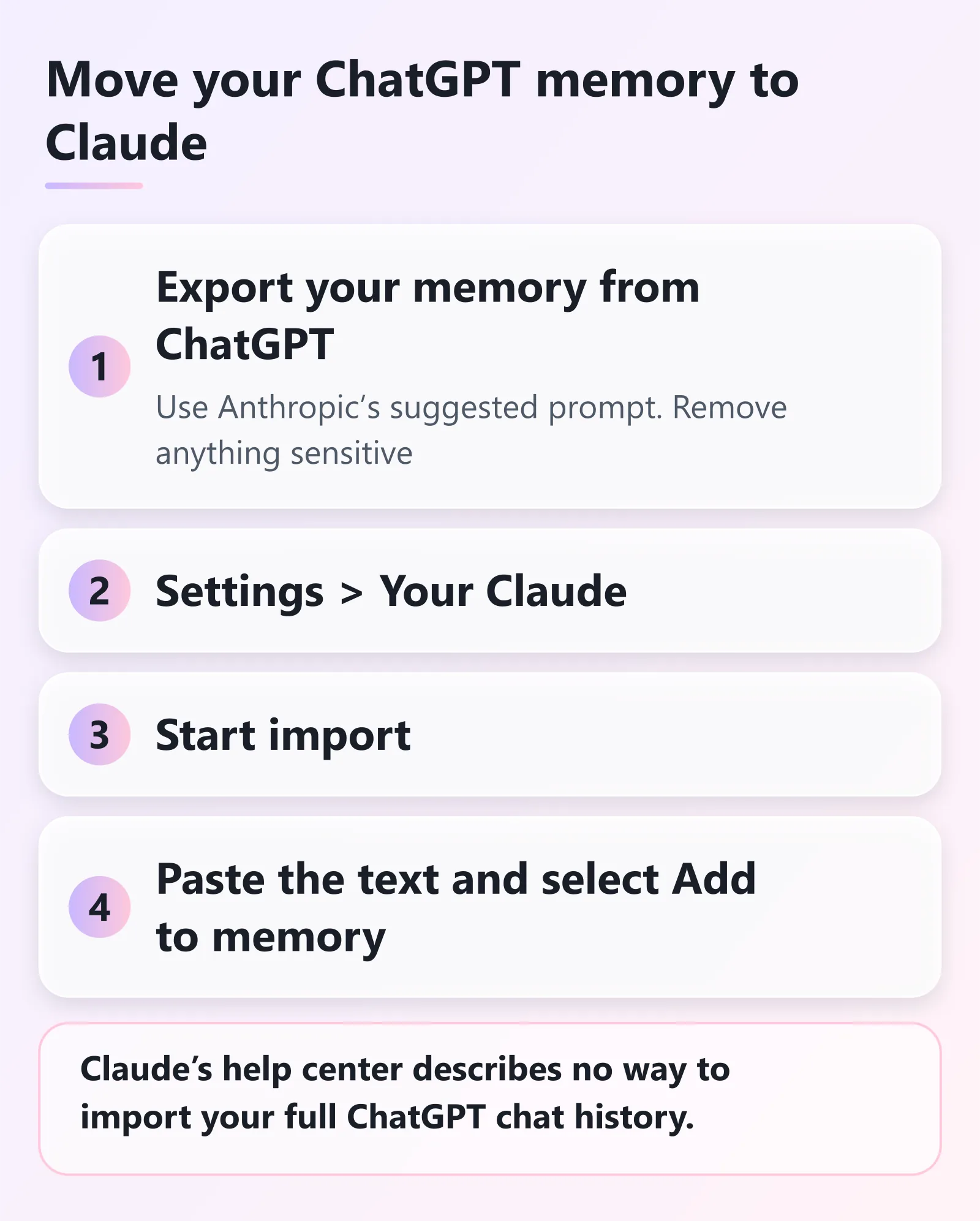
Claude's help center describes no way to import your full ChatGPT chat history. You can import your memory (Settings > Your Claude > Start import) and upload files to a project.
Contents
Can you import ChatGPT history into Claude?
Not in one click. Claude’s help center doesn’t describe a ChatGPT chat-history import, so you can’t press a button and see every old conversation in Claude’s chat list (as of 2026-11-16). Features get added, so check the help center again before you move.
What Claude does document is narrower, but still useful:
- Memory import. Move what your old assistant knows about you (preferences, projects, how you like answers) into Claude’s memory.
- File upload. Put documents you saved from old chats into a Claude project, where Claude can use them as reference material.
Neither one carries over your full conversation history.
How do I import my ChatGPT memory into Claude?
Claude has a built-in import flow for memory from other AI providers. Anthropic says memory imports are available on Free, Pro, Max, Ultra, Team and Enterprise plans, on the web and in Claude Desktop.
Step 1: Export from ChatGPT. Anthropic recommends a specific prompt, and Claude’s import screen shows it to you. In short, you ask your current assistant to list everything it has stored about you, in a single code block. Each entry follows the format “[date saved, if available] - memory content.” The prompt asks it to keep your own words where possible. It also lists what to include:
- your instructions about how to respond
- personal details
- projects and goals
- tools and languages you use
- corrections you’ve made
You can edit the prompt to leave out anything sensitive. If your current service can generate files, you can also ask for a Markdown file as a backup copy.
Step 2: Open the import screen in Claude. Go to Settings > Your Claude and select Start import. In the older Settings layout, it’s under Settings > Memory. The screen shows the prompt and a text box.
Step 3: Paste and submit. Paste the exported text into the box and click Add to memory. Claude pulls out key information and stores it as individual memory entries. You can review them in the memory panel. A “See what Claude learned about you” button starts a new conversation asking what Claude picked up.
Before you rely on it
- Memory imports are experimental. Anthropic says they’re still in active development and Claude may not always incorporate imported memories successfully.
- Claude’s memory is built around work topics. Anthropic says Claude may not retain imported personal details unrelated to work. To add something specific, go to Settings > Your Claude and select Manage next to Your memory. Use the “Tell Claude what to change or remove” box, or just ask Claude in a chat.
- Read the text before you paste it. The export holds whatever your old assistant remembered about you. Remove anything you don’t want to hand to another service.
- A small number of Team and Enterprise organizations still use a legacy memory experience, where menu names differ (Settings > Capabilities, and updates can take up to 24 hours to appear). Anthropic’s article has a separate section for them.
Can I upload my old ChatGPT files to Claude?
Yes. If you saved useful material from ChatGPT (a draft, a long answer, a data file), upload it to Claude. Anthropic says files can go into a single chat or into a project’s Files section, which keeps them available across conversations.
To upload: click the + button in the lower left of the chat box, choose Add files or photos, and select your files. You can also drag and drop, or paste images from your clipboard.
Supported documents: PDF, DOCX, CSV, TXT, HTML, ODT, RTF, EPUB, JSON and XLSX. XLSX needs code execution and file creation turned on in your account. Supported images: JPEG, PNG, GIF and WebP.
Limits Anthropic lists:
- Chat uploads: 500 MB per file, up to 20 files per chat, PDFs up to 1,000 pages.
- Project files: 30 MB per file. The number of files is unlimited, but total content must fit within Claude’s context window. Project files use text extraction only (multimodal PDFs excepted).
Projects. A project is a self-contained workspace with its own chat history and knowledge base. You can upload documents, add instructions, and have focused chats in it. Projects are available to all users, including Free accounts, and Free users can create up to five.
On paid plans, projects scale to larger amounts of content through retrieval-augmented generation (the model looks up the relevant parts of your files instead of loading everything). Anthropic also notes that content in projects is cached and counts less against your usage limits when reused. For how limits work, see Claude usage limits.
What about the ChatGPT export file?
OpenAI lets you download your ChatGPT data as a ZIP file. The guide, How to Export Your ChatGPT Chat History, has the steps. The export holds your conversations in JSON, plus other account data.
JSON is on Claude’s supported-document list. Anthropic’s help pages don’t describe uploading a ChatGPT export, though, so how well Claude handles a full one isn’t documented.
A safer route: pick the few conversations that matter, copy their text into a short document, and upload that to a project. On a Free account, projects are capped at five, and project files are text-extracted and must fit in the context window.
The export is also a good backup before you cancel or change anything in ChatGPT. It can’t restore chats you’ve already deleted.
In what order should I do all this?
- Export your ChatGPT data first, so you have a full copy.
- Run the memory prompt in ChatGPT, read the output, and remove anything sensitive.
- Import the memory into Claude (Settings > Your Claude > Start import), then open Manage next to Your memory to check what was kept.
- Create a project for each ongoing topic and upload the documents you need.
- Keep your ChatGPT account until you’re sure you have what you need.
For a quick look at both services, see the ChatGPT guide and the Claude guide.
About this guide
Written by Aha from Anthropic’s help articles on memory import, file upload and projects. All were checked 2026-11-16, and none describes a ChatGPT history import.
Sources, checked 2026-11-16:
- Import and export your memory from Claude
- Upload files to Claude
- What are projects?
- Usage limit best practices
Last updated here: 2026-11-17.
Related posts
Sources and checks
- Last checked
- Nov 16, 2026
- Updated
- Nov 17, 2026
- Checked by
- Aha
- How we checked
- Checked against Anthropic's official Claude Help Center articles on 2026-11-16. Menu names and behavior come from those articles.
- Sources